
WebP vs AVIF vs PNG vs JPEG: Which Format to Use (Tested)
We ran a real photo and a screenshot through every format and quality level. WebP won both, PNG grew, and AVIF needs more than a browser to make.
 Photo by Erik Mclean on Unsplash
Short answer: use WebP at quality around 80 for almost everything on a website, photos and screenshots alike. Keep PNG for files that must stay pixel-exact, keep JPEG for places that reject WebP (some email clients, older CMS uploaders), and treat AVIF as a bonus you add with a build tool or image CDN, not something you can export from a browser tab today.
The evidence: one photo and one screenshot, pushed through every format and quality level in our Image Compressor, with the file sizes it reported.
WebP vs AVIF vs PNG vs JPEG at a glance
Two things rule most formats out before file size comes up. If the image needs transparency, JPEG is out. If it must match the source pixel for pixel, you want lossless: PNG, or lossless WebP made with a tool like cwebp (a browser tab only makes lossy WebP). Logos and icons are a fifth case: use SVG if you have it.
The four web image formats
| JPEG | PNG | WebP | AVIF | |
|---|---|---|---|---|
| Compression | Lossy | Lossless | Lossy or lossless | Lossy or lossless |
| Transparency | No | Yes | Yes | Yes |
| Use it for | Email, old uploaders | Exact copies, editing masters | Most website images | Extra savings via a build step or CDN |
| Can a browser tab export it? | Yes | Yes | Yes, lossy only | Not in Chromium (Chrome, Edge), which we tested |
Every current Chrome, Edge, Firefox and Safari displays all four. Making AVIF is the hard part.
Display support is no longer the problem it was a few years ago. caniuse lists AVIF and WebP as supported in every current major browser (checked 2026-10; Safari's AVIF support depends on the OS version), so the old advice to wrap everything in a picture element with a JPEG fallback matters mainly for email and for very old devices.
What we measured: one photo, one screenshot
Average savings figures depend heavily on the image. So instead of quoting someone else's average, we ran two very different files through the compressor and wrote down what it said.
- A photo: an espresso cup on a wooden table, 600×400 pixels, stored as a 455.8 KB PNG. Lots of texture in the wood grain, smooth gradients on the porcelain.
- A screenshot: our own Word Counter page, 1200×800 pixels, a 51.5 KB PNG. Flat colors, sharp text, big empty areas.
Tool: the ZipTools Image Compressor with Resize set to Original size, defaults for everything except format and quality. Browser: Chromium (the engine behind Chrome and Edge), run headless on 2026-10-12. Files: a CC0 photo by Rachel Michetti from the scikit-image sample set, and a PNG screenshot of /tools/word-counter. Both are committed with the screenshot recipe in the site repo, so the run can be repeated. Sizes are what the tool reported (1 KB = 1,024 bytes).
Quality settings: where the file size goes
The quality slider is not linear, and the top end is where most of the bytes hide. On the espresso photo, going from 90 to 100 made the JPEG almost five times bigger (70.1 KB to 337.7 KB). Going from 80 down to 50 saved only 20.4 KB on the JPEG and 14.7 KB on the WebP, and it shows: zoomed in, the WebP at 50 has smoothed out the scratches in the wood.
Espresso photo (455.8 KB PNG): output size by quality
| JPEG | WebP | |
|---|---|---|
| Quality 50 | 26.2 KB | 22.8 KB |
| Quality 70 | 36.4 KB | 29.0 KB |
| Quality 80 | 46.6 KB | 37.5 KB |
| Quality 90 | 70.1 KB | 61.8 KB |
| Quality 100 | 337.7 KB | 383.7 KB |
Measured with the Image Compressor in Chromium, 2026-10-12. Lower is smaller.
At the default of 80, WebP came out at 37.5 KB against 46.6 KB for JPEG, about 20% smaller. One caveat: "quality 80" is a different scale in each encoder, so this is a same-slider comparison, not a same-quality one. At normal viewing size, both 80s were hard to tell apart from the original.
Quality 100 is the one setting that flips the result. WebP at 100 was bigger than JPEG at 100, and only 16% smaller than the PNG it started from. If you need a perfect copy, keep the PNG. If you need a small file, start at 80 and adjust from there.
Screenshots: PNG vs WebP vs JPEG
The usual rule says "PNG for screenshots". Our test only half agrees.
- Re-saving the 51.5 KB screenshot as PNG in the browser made it 81.6 KB. Browsers write PNG quickly, not tightly. Screenshot apps and tools like oxipng squeeze harder.
- JPEG at 80 was 40.1 KB, and JPEG is the format most likely to put grey fuzz around sharp text.
- WebP at 80 was 18.9 KB, 63% smaller than the original. Zoomed to 200% on the page title and body text, we could not see a difference from the PNG.
The same thing happened with the photo: re-encoding the 455.8 KB PNG as PNG gave 580.9 KB. So "convert to PNG to be safe" can quietly make files larger. If the source is already a PNG and you need lossless, leave it alone or run it through a dedicated PNG optimizer.
Why you can't make AVIF in a browser yet
AVIF often compresses further than WebP, which is why it tops so many format comparisons. The catch shows up when you try to make one, and it's also why this page has no AVIF size to show you. Web pages (including our compressor) create images with the canvas API, and in our Chromium run, asking canvas for AVIF quietly returned a PNG instead: 580.9 KB, the same bytes as choosing PNG.
Before this update, our tool passed that PNG along with a .avif name. It now checks what the browser actually produced and tells you when your browser cannot write AVIF, rather than handing you a mislabeled file. Fair warning: in Chrome and Edge, which share the Chromium engine we tested, that is what you will see today. We did not test Firefox or Safari.
To ship AVIF anyway, generate it outside the browser: an image CDN that serves AVIF automatically to browsers that ask for it, your framework's image component, or a command-line encoder such as avifenc from libavif. Then serve it in a picture element with WebP as the fallback.
How to optimize images for the web, in order
Format is only one step. Resizing usually matters more: a 4000×3000 camera photo shown at 800×600 carries 25 times the pixels the page uses, and no codec setting fixes that. The order below gets the most out of each step.
- Resize to the largest size it will actually display at (about twice that for sharp retina screens). The compressor has max-dimension, percentage and social-preset modes for this.
- Pick the format from the table above. WebP unless a rule rules it out.
- Set quality to 80, look at the result at 100% zoom, then go down in steps of 5 until you notice a difference. Go back one step.
- Serve two to four widths with srcset, so phones never download the desktop file.
- Set width and height on every img, so the page does not jump while images load, and write alt text that describes the picture.
- Lazy-load images below the fold only. The hero image is often the page's Largest Contentful Paint element, the Core Web Vitals metric for load speed, so let it load right away.
Steps 4 to 6 come together in one tag. This is a hero image after the first three steps, exported at four widths:
<img
  src="hero-800.webp"
  srcset="hero-400.webp 400w,
          hero-800.webp 800w,
          hero-1200.webp 1200w,
          hero-1600.webp 1600w"
  sizes="(max-width: 600px) 100vw, 800px"
  width="800" height="533"
  alt="Espresso cup on a wooden cafe table"
  fetchpriority="high"
/>
For an image further down the page, swap fetchpriority="high" for loading="lazy".
Try it on your own image
Your images will not match ours exactly. A noisy night photo compresses worse than a studio shot, and a screenshot full of gradients behaves more like a photo. The quickest way to know is to run your own file: drop it into the Image Compressor, switch between JPEG and WebP, and watch the size.
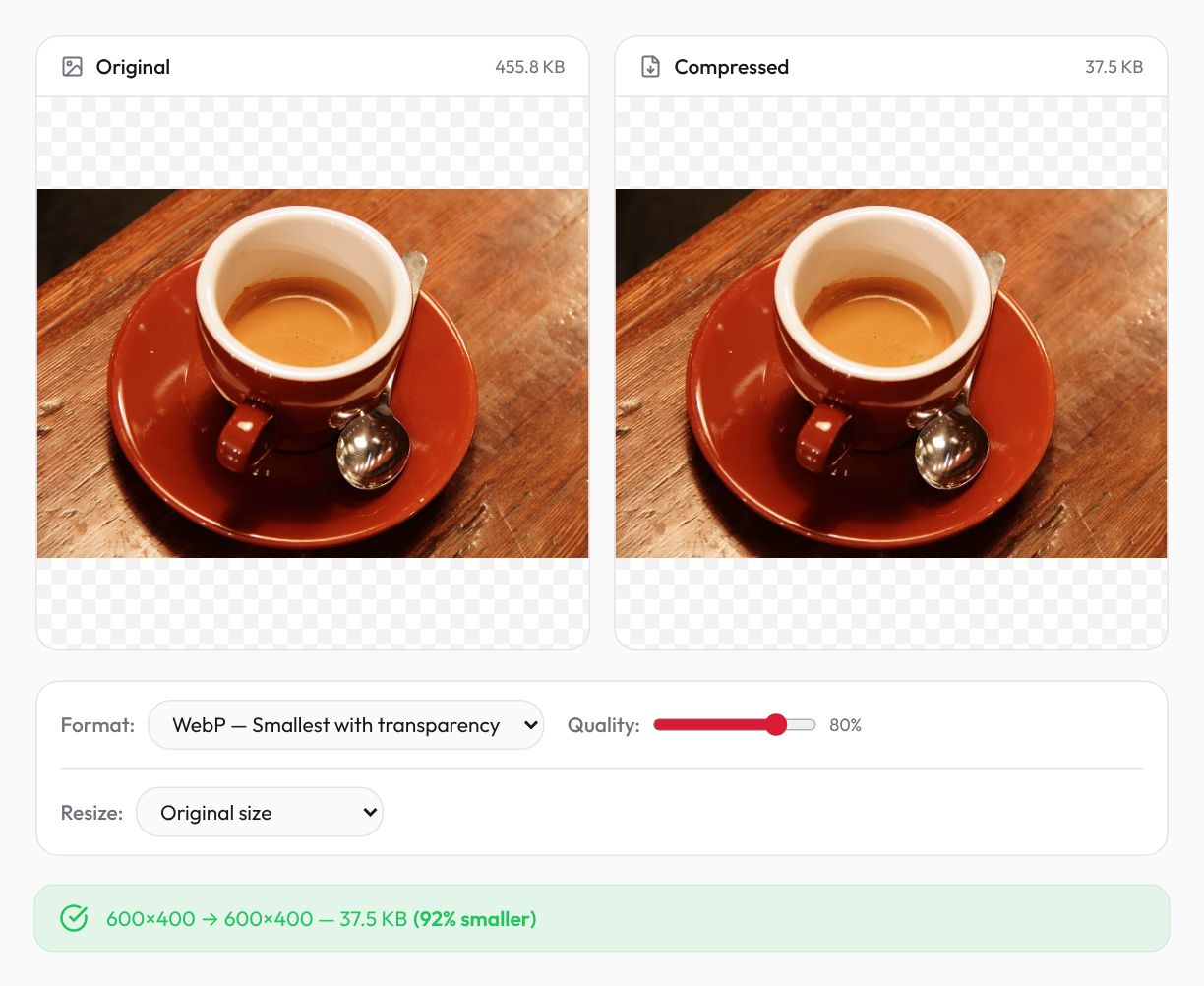
It runs entirely in your browser, so the photo never leaves your machine. That matters for screenshots of dashboards, invoices or chats. If you are cleaning up photos to post publicly, it is also worth removing the hidden location data from them first.
Mahdi Moradi
Full-stack software engineer and founder of Bornara AI, building free privacy-first tools at ZipTools. Based in Calgary, Canada.
Try the tool mentioned in this article.
Open image compressorRelated articles

How AI Background Removal Works — The Technology Behind Instant Cutouts
Neural networks can separate foreground from background in seconds. Here's how the technology works, why client-side processing matters, and how to get the best results.

Claude Token Counter: Estimate Tokens and Cost Online
Count Claude tokens in your browser, see what a prompt costs on Opus, Sonnet and Haiku, and learn when you need Anthropic’s exact count instead.
OpenAI API Cost Calculator: Estimate Your Bill Before You Build
Work out what an OpenAI API feature costs per month before you ship it: the formula, a worked example on GPT-6 and GPT-4o, and what estimates miss.